
This article explains how to create a new HOA in WEGly. The process takes a few minutes and takes you directly to your new dashboard.
How it works
When you log in to WEGly for the first time, onboarding starts automatically. If you want to add another HOA later, you can start the process manually at any time.
Creating the first HOA during onboarding
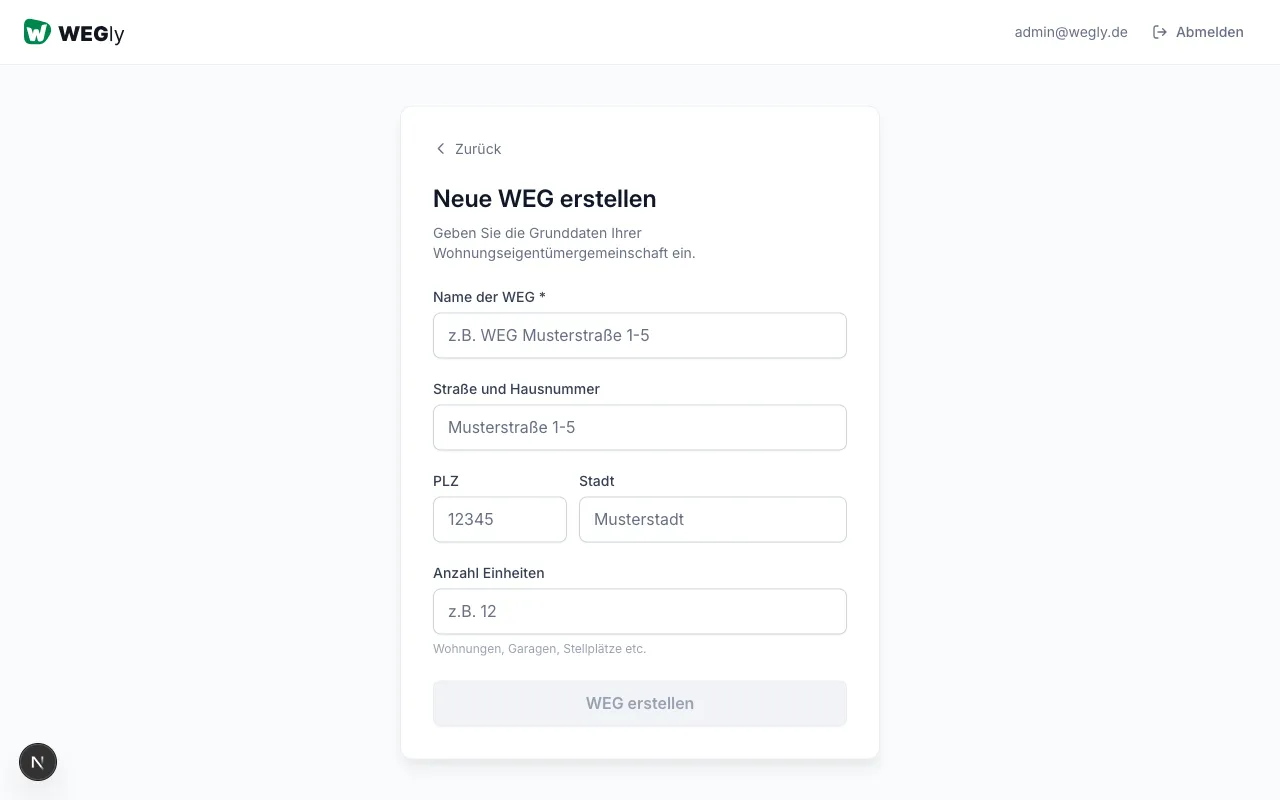
After registration, WEGly takes you directly to the setup form. Fill in the following fields:
- Enter a unique name in the HOA name field, e.g. "Garden Street 12 HOA".
- Enter the street and house number, e.g. "Garden Street 12".
- Enter the postcode and city.
- Click Create HOA.
WEGly then automatically creates a complete folder structure for documents and takes you to your new dashboard. You are entered there as administrator.
Adding another HOA later
You are already managing one HOA and want to add a second:
- Click on the name of your current HOA in the top left of the sidebar.
- Select Create new HOA from the dropdown.
- Fill in the form: HOA name, street and house number, postcode, city.
- Confirm with Create HOA.
The new workspace opens immediately. You can switch between your HOAs at any time using the dropdown in the top left of the sidebar.
What happens after creation?
WEGly automatically sets up the following:
- A pre-filled document structure with standard folders (Minutes, Contracts, Invoices, Basics)
- An empty finance section for ledger and reserves
- An empty unit list under Property
As a next step, we recommend creating the units of your HOA. See Managing units for details.
Tips
- Choose an HOA name that uniquely identifies your community. The address works well as a basis, e.g. "Linden Way 5 HOA".
- Create all units before inviting members. This allows you to assign units directly at invitation time.
- The declaration of division should be uploaded as the first document under Documents. It forms the basis for MEA values and voting weights.
- The complete basic setup (units + owners) typically takes 15-30 minutes. We help free of charge with an import template if you want to transfer data from Excel.
Frequently asked questions
Can I change the HOA name and address afterwards? Yes. Navigate to Organization in the sidebar and open the HOA data tab. There you can adjust the name and address at any time. The change applies immediately to all members.
How many HOAs can I manage in one account? WEGly supports multiple workspaces per account. Each HOA is managed as its own workspace. Switch between HOAs at any time using the dropdown in the top left of the sidebar. See Setting up and configuring an HOA for more on setup.
Who can create a new HOA? Any registered user can create a new workspace. Within the new workspace, the creator is automatically the Administrator and can invite further members and assign roles.