
This article explains how to join an existing HOA in WEGly. The prerequisite is an invitation link or invitation code sent to you by your HOA's administrator.
How it works
The administrator of your HOA sends invitations directly from WEGly. You receive an email with a personal invitation link. Alternatively, the administrator can share an invitation code with you to enter manually.
Joining via the invitation link
- Open the email with the subject "Invitation to [HOA name] on WEGly".
- Click the Accept invitation button.
- You are redirected to the WEGly login page.
- If you do not have an account yet: Click Create account and complete the registration form.
- If you already have an account: Log in with your credentials.
- WEGly automatically adds you as a member of the corresponding HOA.
Joining via an invitation code
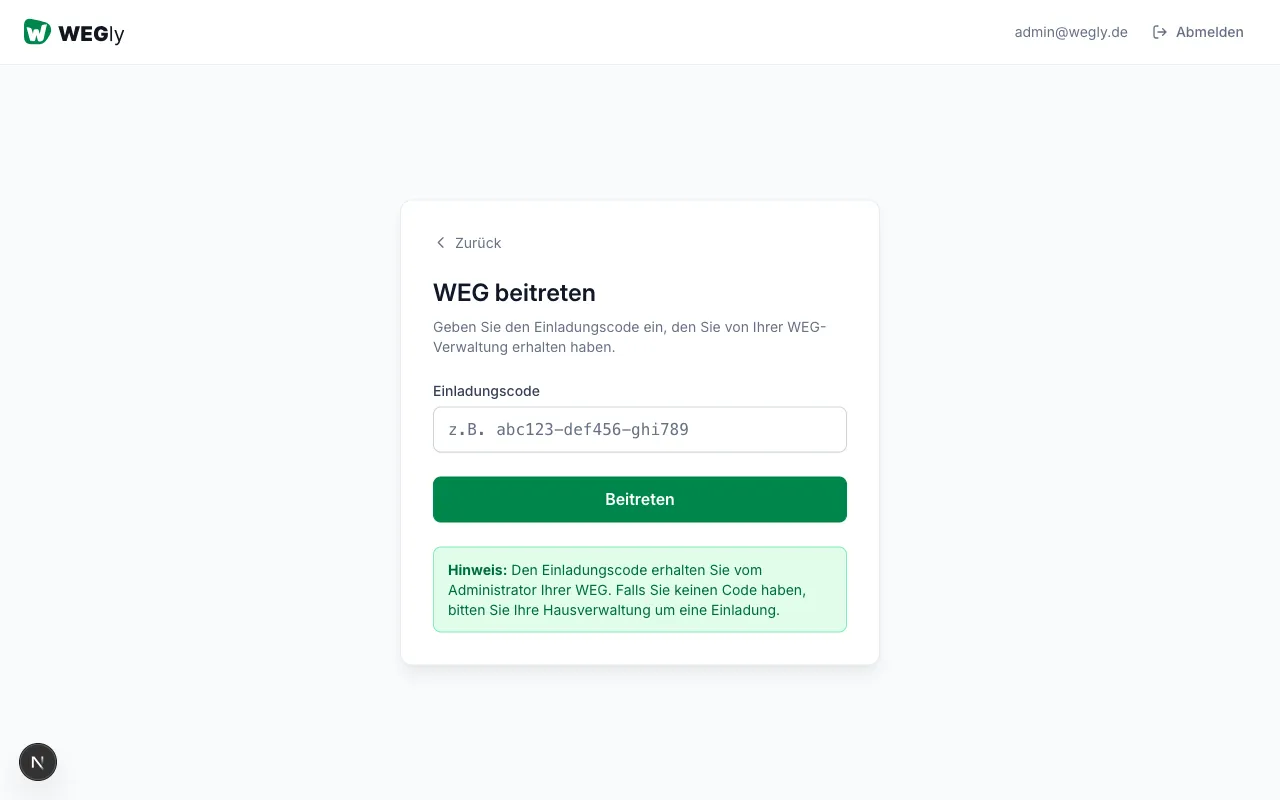
If you can no longer find the invitation link or want to enter the code manually:
- Log in to WEGly or create a new account.
- Click on the HOA name in the top left of the sidebar.
- Select Join HOA from the dropdown.
- Enter the invitation code you received from your administrator.
- Click Join.
WEGly checks the code and adds you to the corresponding workspace. You go directly to the HOA dashboard.
What happens after joining?
- You gain access to the areas corresponding to your role.
- The administrator sets your role: Owner, Board, or Administrator.
- Your unit (apartment, garage, parking space) is assigned to you by the administrator.
- You can immediately access documents, resolutions, and tasks - depending on your role's permissions.
See Assigning roles and permissions for exact rights per role.
Tips
- Invitation links expire after 7 days. Ask the administrator to resend the invitation if the link no longer works.
- You can be a member of multiple HOAs at the same time. Switch between workspaces using the dropdown in the top left of the sidebar.
- After joining, check under Organization whether a unit has already been assigned to you. If not, ask the administrator for the assignment.
- You can complete your profile (name, email, phone) after joining under Settings.
Frequently asked questions
I did not receive the invitation email. What can I do? First check your spam folder. If the email is not there, ask your HOA's administrator to resend the invitation. The administrator finds the corresponding button under Organization next to your name. Alternatively, they can share the invitation code with you directly.
Do I need to create a new account if I want to join a second HOA? No. You can join multiple HOAs with the same WEGly account. Simply click on the invitation link or enter the invitation code as described above. WEGly automatically connects the new workspace to your existing account. See Setting up and configuring an HOA for more on setup.