
This article explains how to create a new HOA in WEGly and set it up for day-to-day use.
How it works
When you log in to WEGly for the first time, you will be guided through the setup process. You can also add further HOAs at any time afterwards.
Create a workspace
- Click the name of your current HOA in the top-left corner of the sidebar (e.g. "Sample HOA Sample Street 123").
- Select Create new HOA from the dropdown.
- Enter the following details:
- HOA name: e.g. "Garden Street 12 HOA"
- Street and house number
- Postcode and city
- Confirm by clicking Create.
The new workspace opens automatically. You are registered there as an Administrator.
Add units
After creating the HOA, add the units (apartments, garages, parking spaces):
- Navigate to Property in the sidebar.
- Click Add unit.
- Fill in the fields: type, label, floor, area in sqm, co-ownership share.
- Click Save.
Repeat this for every unit. For more details, see Manage units.
Invite members
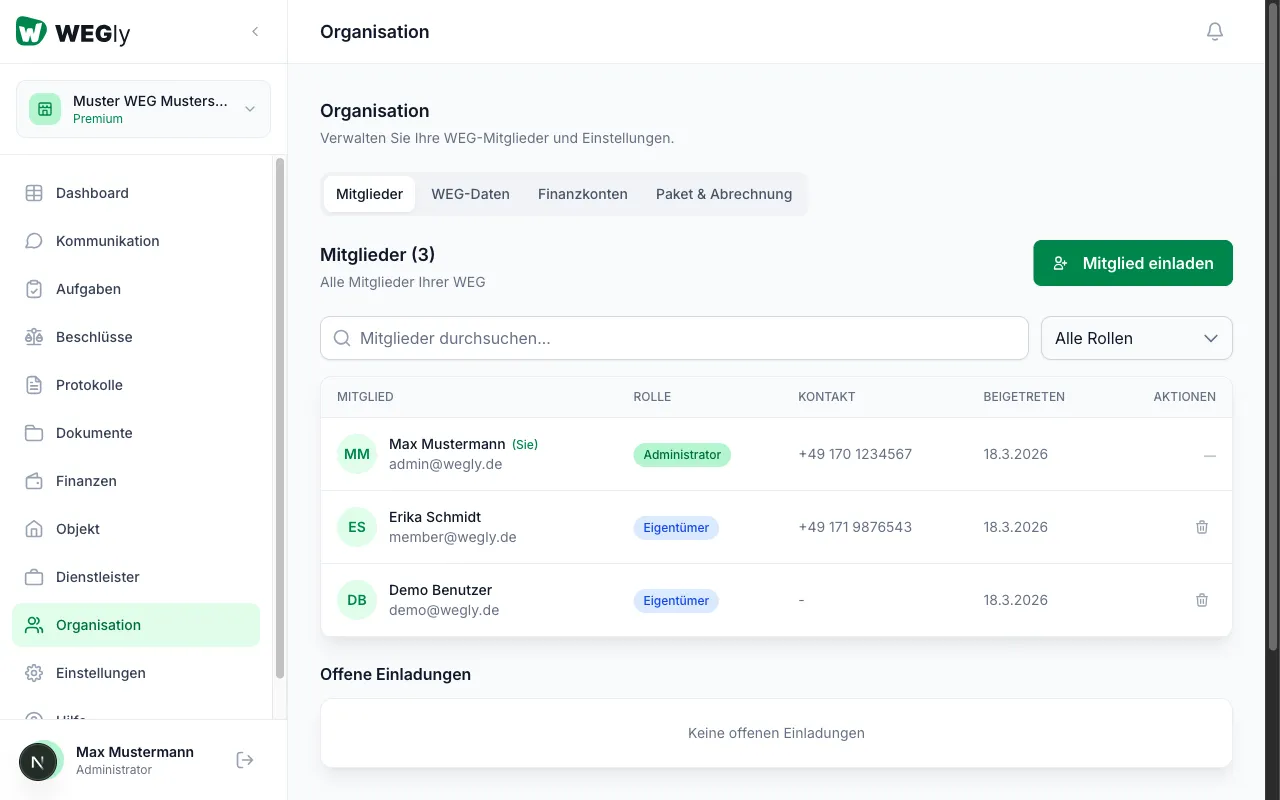
- Navigate to Organisation in the sidebar.
- Click Invite member.
- Enter the email address and the desired role.
- Confirm by clicking Send invitation.
The invited person receives an email with a registration link. For more details, see Manage owners.
Edit HOA data
Navigate to Organisation in the sidebar and click the HOA data tab. You can update the name and address of the HOA at any time.
Tips
- Add all units before inviting members. That way you can assign units directly during the invitation process.
- The basic setup (entering units and inviting owners) takes approximately 15-30 minutes.
- Upload the declaration of division as the first document under Documents - Fundamentals.
Frequently asked questions
Can I manage multiple HOAs in one account? Yes. WEGly supports multiple workspaces per account. Switch between HOAs using the dropdown in the top-left corner of the sidebar.
Who can edit HOA data? Only members with the Administrator role can manage HOA data, units, and memberships.