
March 16, 2026
This article explains how document search and versioning work in WEGly.
How it works
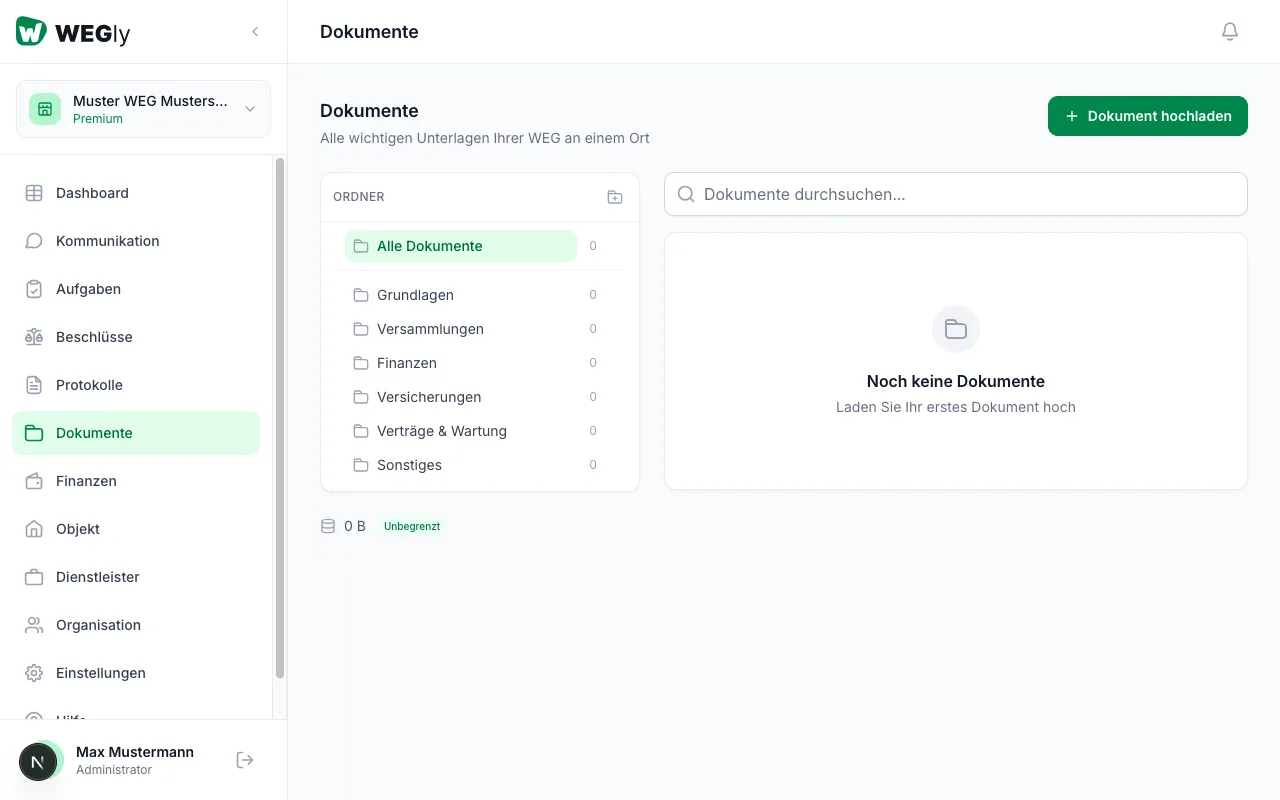
Searching for documents
- Navigate to Documents in the sidebar.
- Click the Search documents field at the top of the page.
- Enter a search term, for example the file name or a keyword.
- The document list filters in real time.
The search covers file names and tags.
Opening documents in the browser
Click on a document in the list to open it directly in WEGly. PDF files are displayed in a preview. Images (JPG, PNG) open in full view.
Downloading a document
Open a document and click Download. The file is saved to your default download folder.
Versioning
When you want to update a document (for example, a new version of the annual budget), upload the new file to the same folder. WEGly saves both versions.
To retrieve an older version:
- Click on the document.
- In the detail panel you will see the version history with date and author.
- Click on an older version to download it.
Tips
- Name documents with a date, for example "annual-statement-2024.pdf". This makes searching easier and the version history more readable.
- Use tags when uploading to make documents easier to find.
- The preview works directly in the browser. No separate application is needed.
Frequently asked questions
Are old versions automatically deleted? No. All versions are permanently stored and can be retrieved at any time.
Can I rename a file after uploading? Administrators can change a document's file name via Edit in the document detail panel.