
February 5, 2026
This article explains how the status workflow for tasks works and how to track progress.
How it works
Every task in WEGly follows a clearly defined status workflow:
Open - In Progress - Done
Change the status of a task
Option 1: Mark a task as done directly
Click Mark as done next to a task in the list. The task immediately switches to the status Done and disappears from the Open view.
Option 2: Edit the task
- Click Edit task for the desired task.
- Change the status in the dropdown.
- Save the change.
Recognise the status in the list
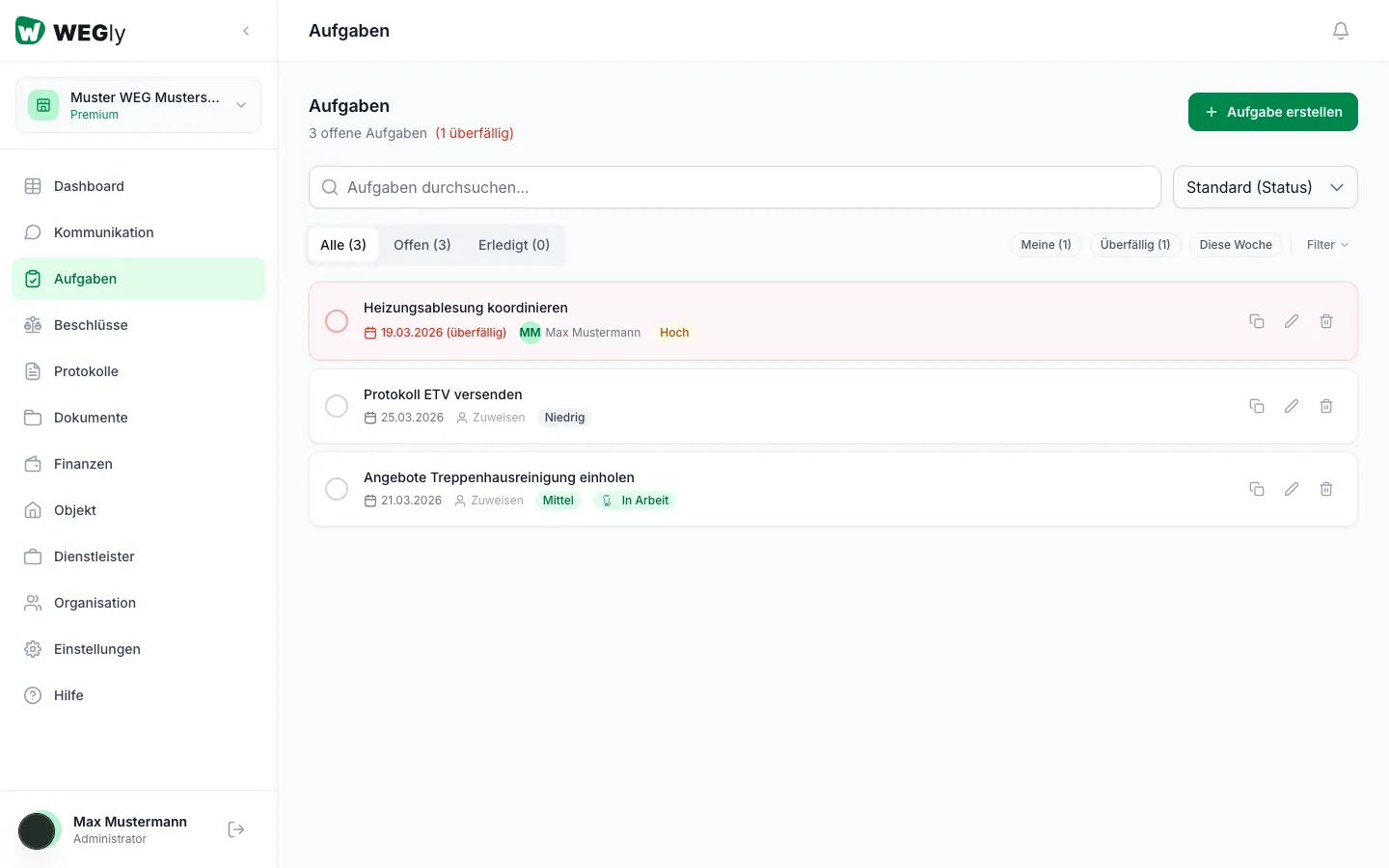
The task list shows the current status of each task:
- No status badge = Open (default)
- In Progress badge = task has already been started
- Done tab = completed tasks
Filter tasks by status
Use the tabs at the top of the task list:
- All: All tasks regardless of status
- Open: Only tasks with status Open (and In Progress)
- Done: Only completed tasks
Tips
- Set a task to In Progress when you are actively working on it. This shows other members that the task is being handled.
- Completed tasks remain visible under the Done tab. They are not deleted.
- Only open tasks appear on the dashboard.
Frequently asked questions
Can I reopen a completed task? Yes. Open the task via the Done tab and click Edit task. Change the status back to Open.
Who can change the status of a task? All members with the role Administrator or Owner can change the status, regardless of who the task is assigned to.