
March 28, 2026
This article explains what roles exist in WEGly and how to change the role of a member.
How it works
WEGly has 4 roles that determine what a member can see and do in the app.
The 4 roles at a glance
Administrator
- Full management rights
- Can manage HOA data, units, and members
- Can create and close votes
- Can upload and delete all documents
- Can create and assign tasks
Advisory board
- Extended rights for advisory board members
- Can create and assign tasks
- Can upload documents
- Cannot manage HOA data or memberships
Owner
- Standard rights for property owners
- Can read all content
- Can create posts on the bulletin board
- Can participate in votes
- Cannot perform administrative actions
Tenant
- Restricted read access
- Can read shared documents
- Can read bulletin board posts
- Has no access to finances or minutes
Change a member's role
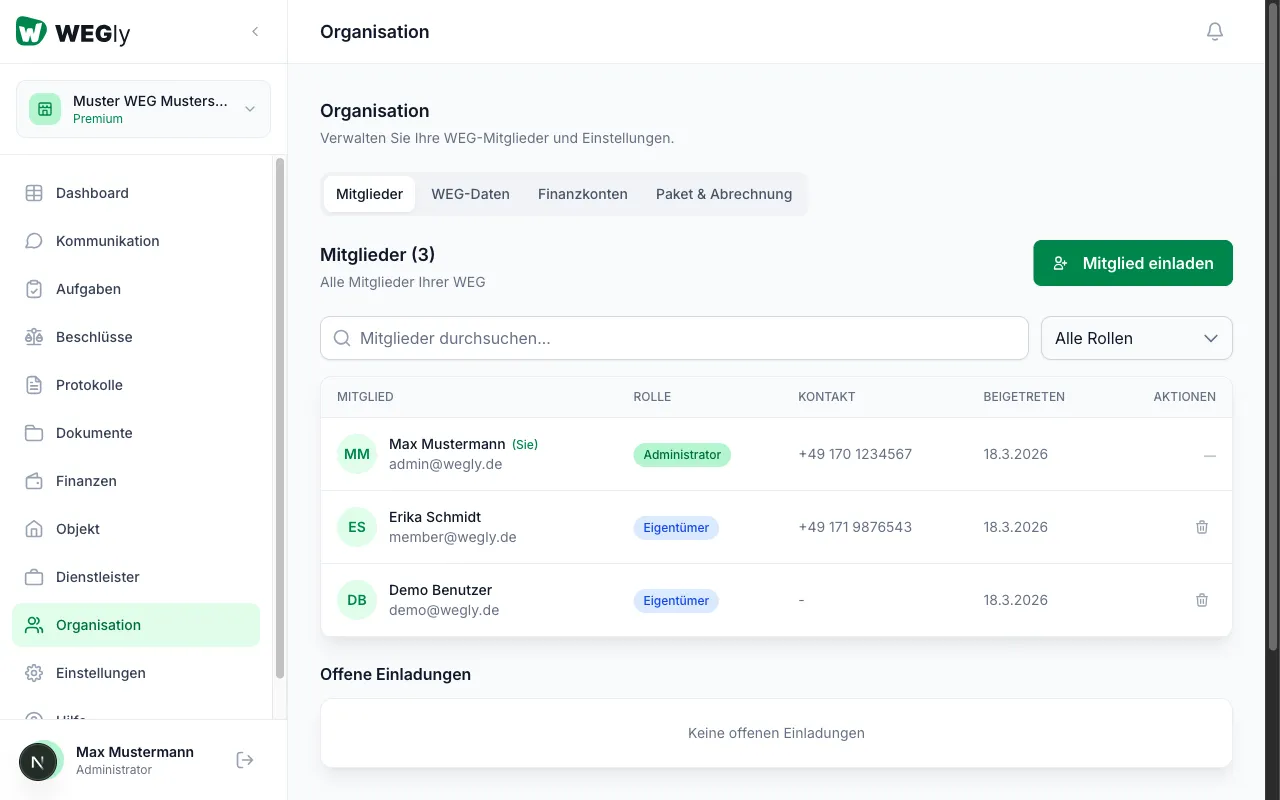
- Navigate to Organisation in the sidebar.
- Click the Members tab.
- Find the desired member in the table.
- Click the current role in that member's row.
- Select a new role from the dropdown.
- The change is saved immediately.
Invite new members with a role
When inviting a new member (button Invite member), you select the role directly. For more details, see Manage owners.
Tips
- Appoint at least 2 people as Administrator. That way the HOA can still be managed if one person is unavailable.
- Only grant the Administrator role to people you know and trust.
- Tenants have very restricted rights. This is the expected setup in most HOAs.
Frequently asked questions
Can I change my own role? No. An administrator cannot change their own role as long as they are the only administrator. Appoint another administrator first.
What happens to existing content when I change a member's role? Existing content (tasks, posts) is retained. Access permissions are updated immediately. The member will only see what corresponds to their new role.