
February 26, 2026
This article explains how to create minutes for an owners' meeting or a written resolution in WEGly.
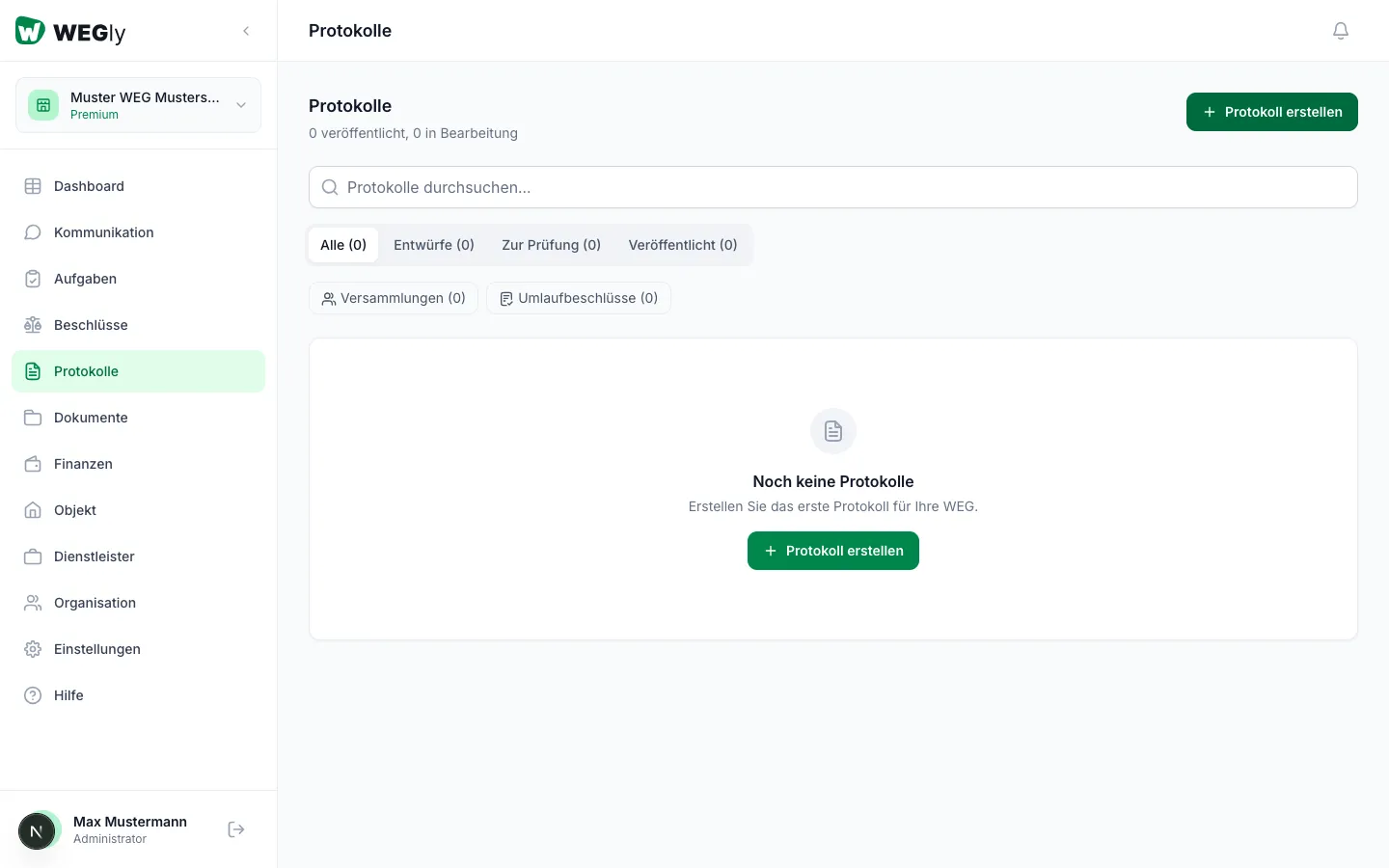
How it works
Minutes in WEGly document owners' meetings and written resolutions. They can be saved as a draft, released for review, and then published.
Creating minutes
- Navigate to Minutes in the sidebar.
- Click Create minutes.
- Select the type of minutes:
- Meeting: Minutes of an owners' meeting
- Written resolution: Minutes of a written circular procedure
- Fill in the metadata:
- Title: e.g. "Annual owners' meeting 2025 - Annual accounts and budget planning"
- Date: Date of the meeting or resolution
- Location: For meetings: the meeting venue
- Record the content of the minutes in the text field.
- Click Save as draft.
Status workflow
Minutes go through the following stages:
- Draft: Still being edited, only visible to admins
- Under review: Ready for checking before publication
- Published: Visible to all members, all receive an email notification
Publishing minutes
Once the minutes are complete, change the status to Published. All members are notified automatically (if the notification is enabled).
Filtering minutes
Use the tabs and filters:
- Tabs: Drafts, Under review, Published
- Filter buttons: Meetings or Written resolutions
Tips
- Create the minutes directly after the meeting while the details are still fresh.
- Use the Under review status to have the minutes checked by an advisory board member before publication.
- Published minutes cannot be edited.
Frequently asked questions
Can owners leave comments on minutes? Commenting on minutes is not currently available. Use the bulletin board for follow-up questions.
Are minutes also saved as a document? Published minutes appear automatically in the Meetings folder under Documents.