This article explains how to edit your personal profile data, adjust notification settings, change your password, and manage your account.
How it works
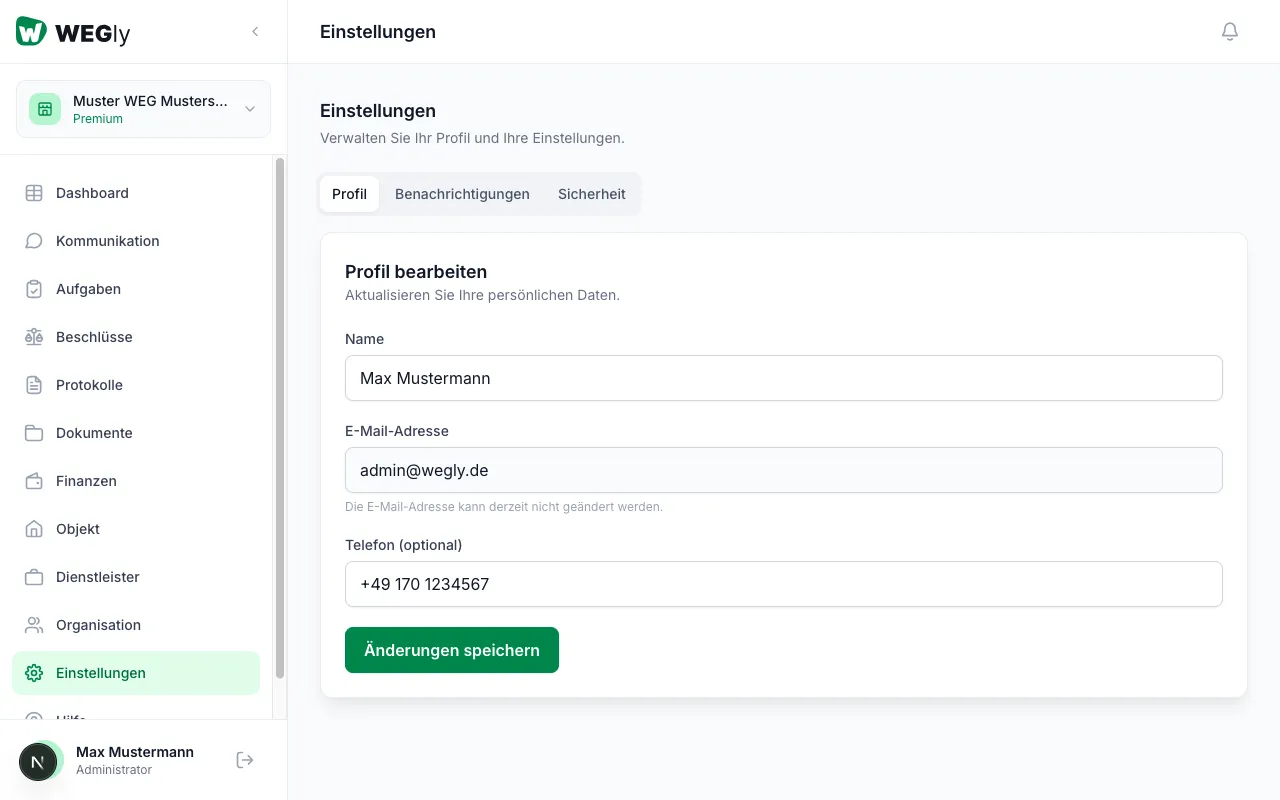
All personal settings are found under Settings in the sidebar. The settings apply account-wide - regardless of which HOA workspace you are in.
Editing profile data
- Navigate to Settings in the sidebar.
- Open the Profile tab.
- Edit the following fields as needed:
- First name and Last name
- Email address: A change requires a confirmation email to the new address.
- Phone number: Used for optional SMS notifications.
- Click Save changes.
The changes apply immediately to all HOAs you are a member of.
Configuring notifications
WEGly can inform you about important events in your HOA by email or push notification. You can adjust settings individually per HOA:
- Navigate to Settings in the sidebar.
- Open the Notifications tab.
- Use the dropdown in the top right to select the HOA whose settings you want to adjust.
- Enable or disable individual notification types:
- New tasks: When a task is assigned to you
- New resolutions: When a vote is started
- New documents: When a new document is uploaded
- Payment reminders: For open service charge items
- Notice board news
- Click Save settings.
See Setting task notifications for more on task-related notifications.
Changing your password
- Navigate to Settings in the sidebar.
- Open the Security tab.
- Click Change password.
- Enter your current password.
- Enter the new password and repeat it to confirm.
- Click Save password.
The new password takes effect immediately. You remain logged in on all devices where you already have an active session.
Deleting your account
Deleting your account permanently removes all personal data from WEGly:
- Navigate to Settings in the sidebar.
- Open the Security tab.
- Scroll to the Delete account section.
- Click Delete account permanently.
- Confirm the action by entering your password.
Note: If you are an administrator of an HOA, you must either appoint another administrator or delete the HOA workspace separately before deleting your account. WEGly will notify you of open dependencies before the deletion is completed.
Tips
- Keep your email address up to date. It is used for invitations, password resets, and important HOA notifications.
- Disable notification types you do not need. A well-calibrated notification strategy prevents notification fatigue and ensures you do not miss truly important events.
- If you are a member of multiple HOAs, check the notification settings for each HOA separately. The default settings apply to all HOAs but can be overridden individually.
Frequently asked questions
Can I change my email address if I am a member of multiple HOAs? Yes. The email address is linked to your account, not to individual HOAs. After the change you will receive a confirmation email at the new address. Only after confirmation does the new address become active. Your profile is automatically updated in all HOAs you are a member of.
I receive too many notifications. How do I selectively disable them? Open Settings and select the Notifications tab. There you can specify for each HOA individually which events should notify you. You can also disable all notifications for an HOA without leaving it. See Assigning roles and permissions for detailed notes on task-related notifications.