February 23, 2026
This article explains how to use the resolution book in WEGly and manage passed resolutions.
How it works
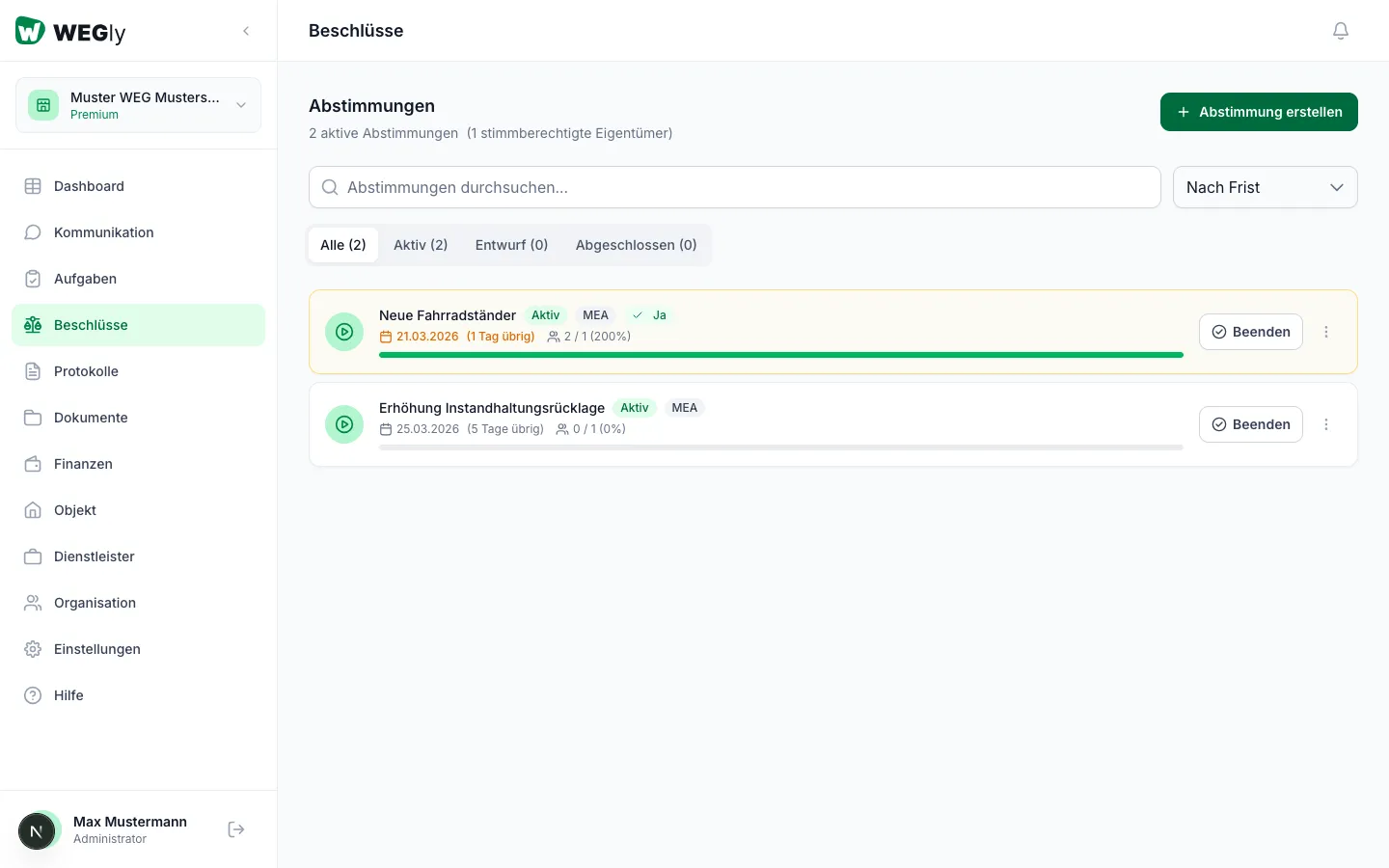
The resolution book is the central overview of all online votes in your HOA. Navigate to Resolutions in the sidebar.
Votes at a glance
The Votes page shows all votes with the following information:
- Title of the vote
- Status: Active, Draft, or Completed
- Voting method (e.g. MEA)
- Deadline and remaining days
- Participation rate (e.g. 2 / 1 eligible voters)
Using status tabs
Filter votes by status:
- All: All votes
- Active: Ongoing votes
- Draft: Votes not yet started
- Completed: Ended votes with result
Opening a vote
Click on a vote in the list. A detail panel opens with:
- Title, description, and status
- Voting method and required majority
- Deadline and participation rate
- Creation date and responsible person
- Your own voting result (if you have voted)
Ending a vote
Click End on an active vote to close it early. The result is evaluated immediately.
Sorting votes
Use the sort dropdown:
- By deadline: Next expiring first
- By title: Alphabetical
- By creation: Newest first
Tips
- Completed votes remain permanently visible in the resolution book. They form the transparent archive of your HOA resolutions.
- The participation figure shows how many eligible voters have already voted (e.g. "2/3 = 67%").
- Create new votes via Create vote. See Creating an online vote for details.
Frequently asked questions
Can deleted votes be restored? No. Deleted votes are permanently removed. End votes instead of deleting them to archive the result.
Who can create and end votes? Only members with the role Administrator can create and end votes.