
This article explains how to assign a task to a specific person and how to change an existing assignment.
How it works
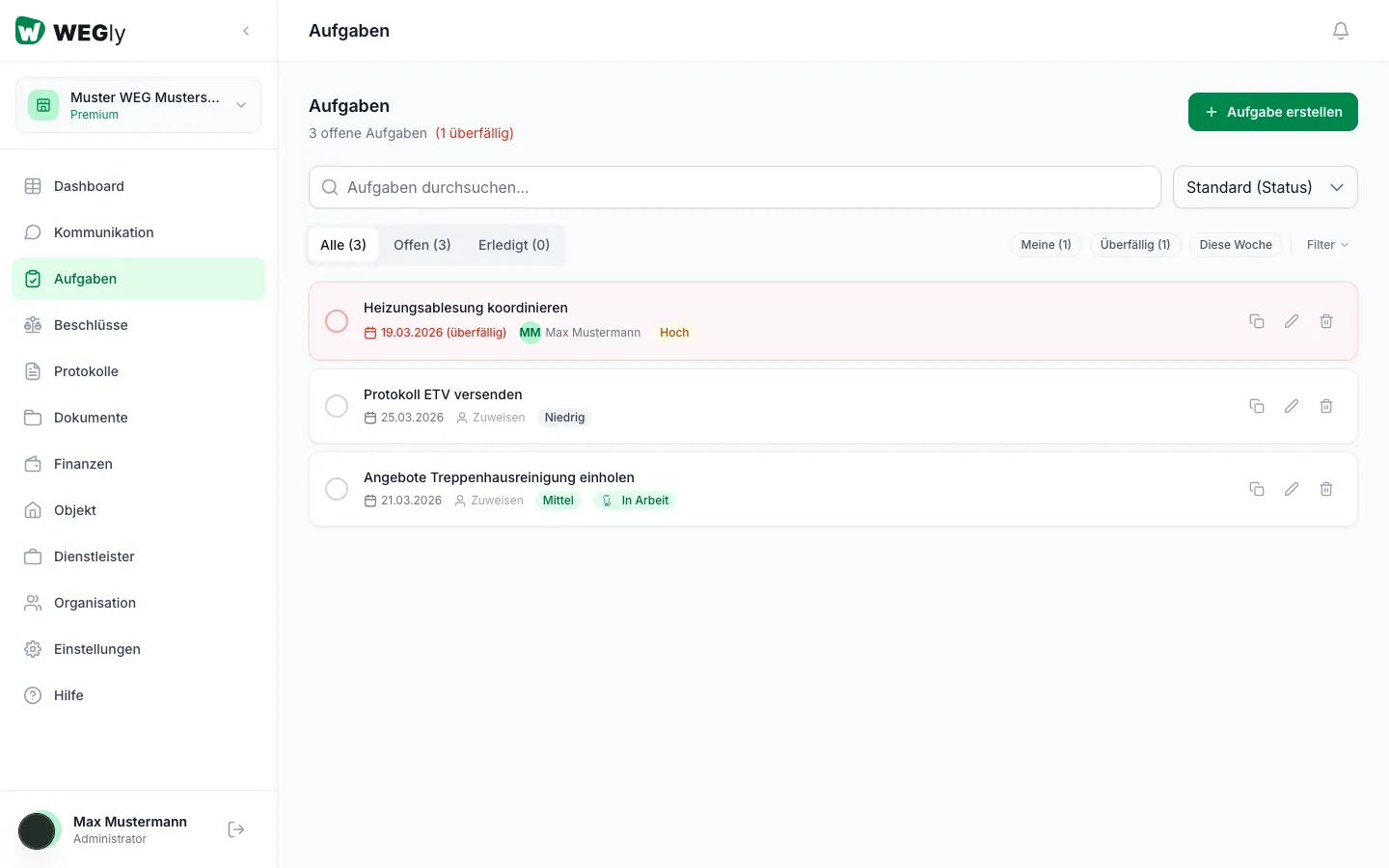
Each task can be assigned to one person. The assigned person sees the task under Mine and receives an email notification when a new assignment is made.
Assign a task when creating it
- Navigate to Tasks in the sidebar.
- Click Create task.
- Select a member from the dropdown in the Assignee field.
- Click Save.
Change the assignment of an existing task
- Click Edit task for the desired task.
- Change the assigned person in the Assignee field.
- Save the change.
Filter assigned tasks
Click Mine in the task list to display only the tasks assigned to you. The number in brackets shows how many there are.
Identify tasks without an assignment
Unassigned tasks display Assign instead of a name. This serves as a reminder that no one is yet responsible.
Tips
- Always assign a specific person to each task. Tasks without a responsible person are often overlooked.
- When you assign a task to someone, they receive an email with the subject "Task assigned" (provided the notification is enabled).
- You can assign tasks to yourself. This is useful for personal to-dos in the HOA context.
Frequently asked questions
Can multiple people be assigned to one task? Currently exactly 1 person can be assigned to each task. For shared responsibility, create separate tasks.
Does the status change automatically when a task is assigned? The status does not change automatically. You can manually set the task to In progress.