
This article explains how to create a new task in WEGly and fill in all the relevant fields.
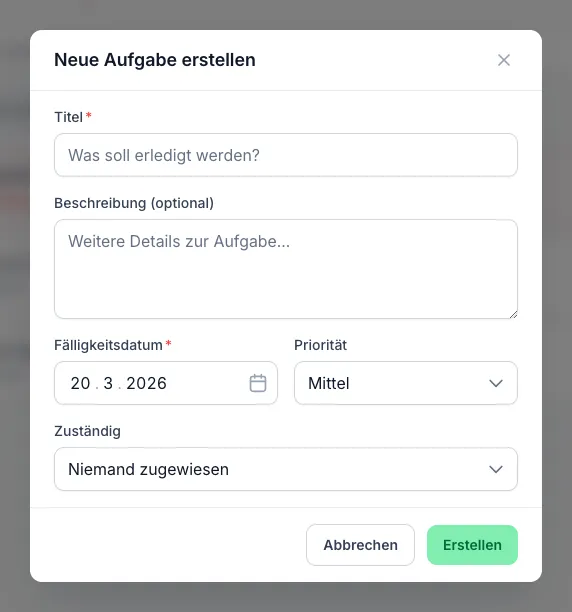
How it works
- Navigate to Tasks in the sidebar.
- Click Create task in the top right.
- A form opens. Fill in the following fields:
Required fields
- Title: A short description of the task (e.g. "Coordinate meter reading")
Optional fields
- Description: More detailed information about the task
- Due date: When should the task be completed?
- Priority: Choose between High, Medium, and Low
- Assignee: Assign the task to a member
- Click Save to create the task.
The new task appears immediately in the task list with the status Open.
Tips
- Always assign a task to a specific person. Unassigned tasks are easily overlooked.
- Set realistic due dates. Overdue tasks are highlighted on the dashboard.
- Use the High priority only for genuinely urgent tasks, so the signal remains meaningful.
Frequently asked questions
Can I create a task from the dashboard? Yes. Scroll down to Quick actions on the dashboard and click + Create task.
What happens if I do not set a due date? The task appears in the list without a date. It will not be marked as overdue, even if it stays open for a long time.
Can I edit a task after creating it? Yes. Click the Edit icon (pencil icon) next to a task in the list. In edit mode you can adjust all fields: title, description, due date, priority, and assignee.
Can I duplicate a task instead of creating a new one? Yes. Click the Duplicate icon (two overlapping rectangles) next to the task. WEGly creates a copy with "(Copy)" appended to the title. See Duplicate tasks for details.
How many tasks can I create? There is no limit on the number of tasks. For a clear overview, we recommend marking completed tasks as done regularly. Completed tasks can be found under the Done tab.